



TL;DR:
- You can add a working AI chatbot to your WordPress site in under 20 minutes, for free. Tidio is our top recommendation for most businesses: real AI responses, lead capture, and a free tier that covers up to 50 conversations per month.
- But installation is only 20% of the job. The other 80% is strategy: what your chatbot says, when it appears, and what it does with the leads it captures. This guide covers both.
- Quick Answer: Install Tidio, set up 5 starter conversation flows, connect email notifications, and you’ll have a lead-capturing AI chatbot live on your site before lunch.
Table of Contents
AI chatbot WordPress free. That’s what you searched, and the answer is yes, it’s completely possible. You can install a fully functional AI-powered chatbot on your WordPress site in about 20 minutes, with zero coding skills and zero monthly cost to start.
Here’s the problem with most chatbot guides: they focus entirely on installation and skip the strategy. They’ll show you which buttons to click but won’t tell you what your chatbot should actually say, when it should appear, or how to set it up so it captures leads instead of annoying visitors. A badly configured chatbot is worse than no chatbot at all.
At BK Web Designs, we’ve built and configured AI chatbots for over 50 client websites. We know what converts and what gets instantly closed. This guide gives you both: the quick technical setup and the strategy that makes it actually work. And we’ll be honest about where free plugins hit their limits, so you know exactly when it’s time to level up.
📥 Free Resource: Building or improving a WordPress site? Download our free Website Redesign Audit Checklist. It includes a section on conversion tools like chatbots, live chat, and lead capture forms.
Download Free Checklist →

AI Chatbot vs Rule-Based Chatbot: The Difference That Actually Matters
Before you install anything, you need to understand the two types of chatbots available. Choosing the wrong type is the most common mistake we see.
Rule-Based Chatbots (The Old Way)
These follow pre-written scripts. “If the visitor clicks Option A, show Response B.” They’re essentially interactive menus disguised as conversations. They work fine for simple FAQ routing and lead capture forms, but they break the moment a visitor asks something outside the script. There’s no intelligence. Just decision trees.
AI-Powered Chatbots (The 2026 Standard)
These use natural language processing to understand what visitors actually mean, even when they phrase things differently than expected. An AI chatbot trained on your business data can answer questions it’s never seen before by understanding context. The chatbot market is projected to reach $15.5 billion by 2028, and AI-powered options are driving that growth because they deliver dramatically better user experiences.
In 2026, approximately 67% of consumers have used a chatbot for customer support in the past year. That number keeps climbing because AI chatbots have gotten genuinely good. They’re no longer the clunky “I didn’t understand that” experiences from a few years ago.
Our recommendation: Always choose an AI-powered option, even on the free tier. The plugins we recommend below all offer some level of AI capability at no cost.
The 3 Things Your WordPress Chatbot Must Do (Strategy Before Installation)
Don’t install a chatbot and then figure out what it should do. Define these three functions first. Every successful chatbot we’ve deployed for clients handles all three.
1. Answer FAQs Instantly
According to IBM’s research, chatbots can handle up to 80% of routine customer queries without human intervention. That means your chatbot should know the answers to the questions you get asked every single day: pricing, hours, shipping times, return policies, service areas, and turnaround times. List your top 10 most-asked questions. Those become your chatbot’s core knowledge base.
2. Capture Leads (Name, Email, Project Details)
Your chatbot isn’t just a support tool. It’s a lead generation machine. Research from Drift shows that 55% of businesses using chatbots generate more high-quality leads. Configure your chatbot to collect name, email, and at least one qualifying question (budget range, project type, or timeline) before handing off to a human. One client’s chatbot captured 47 qualified leads in its first month, leads that would have otherwise bounced without engaging.
3. Route Complex Questions to a Human
Your chatbot needs to know its limits. When a visitor asks something the AI can’t confidently answer, the chatbot should say “Let me connect you with our team” and route the conversation to email or a live agent. 74% of users prefer chatbots for simple questions, but they still want human access for complex issues. A chatbot that traps visitors in an endless loop of “I didn’t understand that” destroys trust faster than having no chatbot at all.
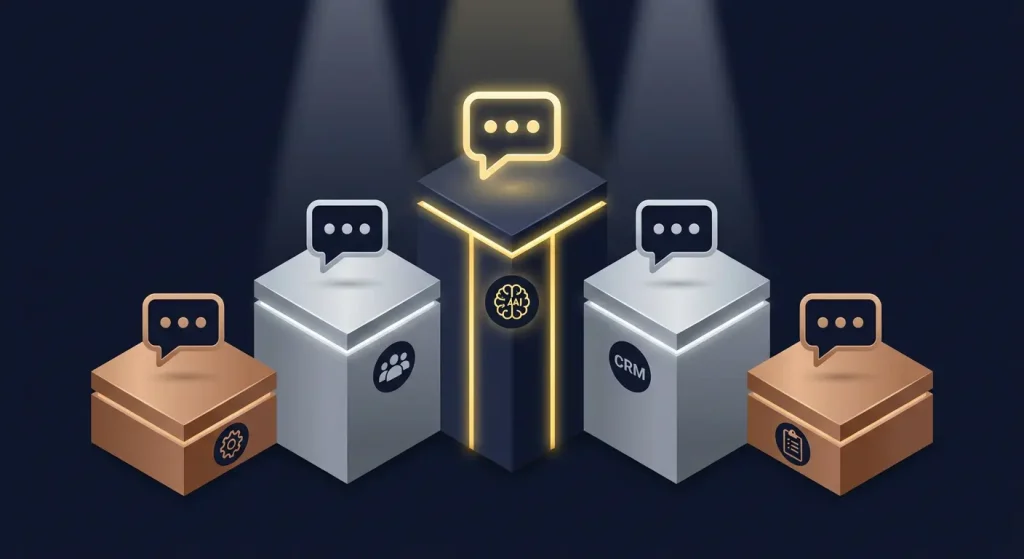
The 5 Best Free AI Chatbot Plugins for WordPress (2026)
We tested and evaluated the most popular free WordPress chatbot plugins currently available. Here’s our honest assessment of each one.
| Plugin | Free Tier Limit | AI Powered? | Setup Time | Lead Capture | Best For | Our Rating |
|---|---|---|---|---|---|---|
| Tidio | 50 conversations/mo | Yes (Lyro AI) | 15 min | Yes | Small businesses wanting AI + live chat combo | ⭐ 4.5/5 |
| HubSpot Chat | Unlimited (with HubSpot CRM) | Basic AI | 20 min | Yes (into HubSpot) | Businesses already using HubSpot | ⭐ 4/5 |
| WPBot | Unlimited basic | Yes (DialogFlow) | 30 min | Yes | Tech-savvy users wanting deep customization | ⭐ 3.5/5 |
| Collect.chat | 50 responses/mo | No (rule-based) | 10 min | Yes | Simple lead capture surveys | ⭐ 3.5/5 |
| Crisp | 2 seats free | Basic AI | 15 min | Yes | Teams wanting shared inbox + chat | ⭐ 4/5 |
Our Top Pick: Tidio
Tidio wins for most WordPress business owners because it combines genuine AI capability (Lyro AI understands natural language and learns from your content), a visual flow builder for custom conversation paths, live chat fallback for when you’re online, and a clean mobile-optimized widget that doesn’t slow your site down. The free tier caps at 50 AI conversations per month, which is plenty for sites getting under 5,000 monthly visitors.
Runner-Up: Crisp
If you have a small team and want a shared inbox where multiple people can see and respond to chat conversations, Crisp is excellent. The free tier includes 2 team seats, and their AI features have improved significantly. It’s also one of the most lightweight plugins in terms of page speed impact.
Best for HubSpot Users: HubSpot Chat
If you’re already using HubSpot CRM, this is a no-brainer. Chat conversations automatically log to your CRM contacts, qualifying info flows straight into your pipeline, and there’s no conversation limit on the free tier. The AI is basic compared to Tidio’s Lyro, but the CRM integration makes up for it.
Step-by-Step: Install Your AI Chatbot in 20 Minutes (Using Tidio)
We’re using Tidio for this walkthrough because it’s our top recommendation. The process is similar for other plugins, but Tidio offers the best balance of AI capability and ease of setup.
Step 1: Install and Activate the Plugin (3 Minutes)
In your WordPress dashboard, go to Plugins, then Add New. Search for “Tidio.” Click Install Now, then Activate. You’ll see a Tidio menu item appear in your left sidebar. Click it and create a free Tidio account (or connect an existing one). That’s it. The chat widget is now live on your site.
Step 2: Configure the Chat Widget Appearance (5 Minutes)
Inside the Tidio dashboard, go to Settings, then Appearance. Match the widget to your brand: choose your brand color for the chat bubble, upload your logo or team photo as the avatar, set the widget position (bottom-right is standard and expected by users), write a custom welcome message (more on what to say in a moment), and set online/offline hours so visitors know when to expect a live response.
Step 3: Set Up 5 Starter Conversation Flows (10 Minutes)
This is where most people stop and where most chatbots fail. A chatbot without conversation flows is just a blank text box. Set up these five flows:
| Flow Name | Trigger | What It Does | Example Message |
|---|---|---|---|
| Welcome Greeter | Visitor on site for 30+ seconds | Friendly intro, offers help categories | “Hey! Looking for pricing, our portfolio, or support?” |
| FAQ Responder | Visitor clicks “Quick Question” | Answers top 5 most common questions | “Our projects typically take 3 to 6 weeks…” |
| Lead Qualifier | Visitor clicks “Get a Quote” | Asks budget, timeline, project type, captures email | “Great! What type of project are you planning?” |
| Support Router | Visitor clicks “I Need Help” | Identifies issue type, routes to email if complex | “Is this about an existing project or something new?” |
| After Hours | Outside business hours | Captures name and email, promises follow-up | “We’re offline now but will reply within 12 hours.” |
In Tidio, go to Flows, then Create New Flow. Use their visual drag-and-drop builder to map each conversation. Start with the Welcome Greeter and Lead Qualifier. Those two alone handle most visitor interactions.
Step 4: Connect Email Notifications (1 Minute)
In Tidio Settings, go to Notifications. Enable email alerts for new conversations and captured leads. This ensures you see every lead even when you’re not watching the dashboard. Set up notifications for your phone too so you can respond to live chats quickly when you’re available.
Step 5: Test on Mobile and Desktop (2 Minutes)
Open your site on your phone and your computer. Click the chat widget. Go through each flow. Check that the widget doesn’t cover important content on mobile. Verify that emails arrive when leads are captured. If anything looks off, adjust in Tidio’s dashboard. Also make sure the chatbot plugin stays updated. Outdated plugins are a common security risk, as we cover in our guide on recovering a hacked WordPress site.
5 Chatbot Mistakes That Annoy Visitors (And Kill Conversions)
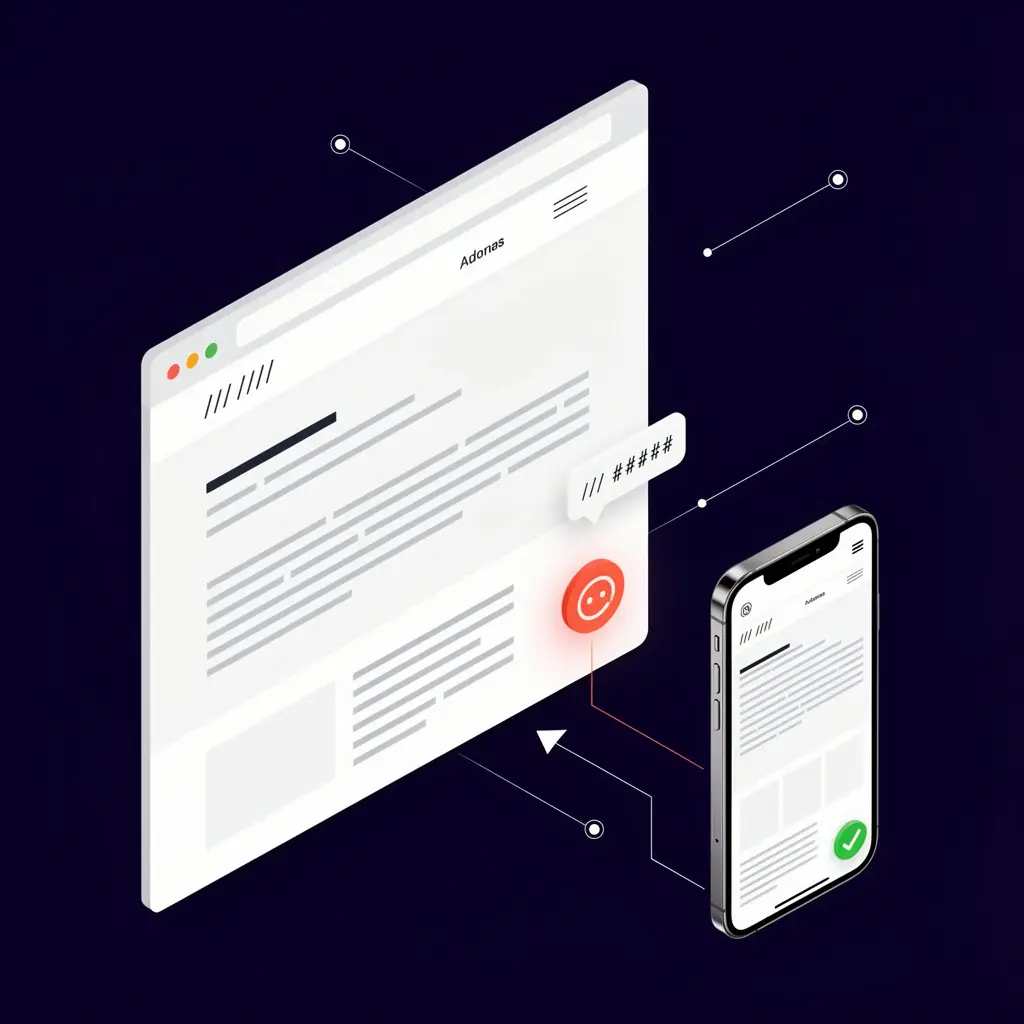
Installing a chatbot is easy. Configuring it so it helps instead of hurts is where most people get it wrong. Businesses using chatbots well report a 30% reduction in customer service costs. Businesses using chatbots badly just drive visitors away faster. Here are the five mistakes to avoid.
Mistake #1: Chatbot Appears Instantly Before the Page Loads
The problem: The visitor hasn’t even seen your homepage yet and a chat popup is demanding their attention. It feels aggressive, like a salesperson rushing toward you the second you walk into a store.
The fix: Set your welcome message to trigger after 30 seconds of browsing, not on page load. In Tidio, go to your Welcome Greeter flow, click the trigger settings, and set the delay. Let visitors orient themselves first.
Mistake #2: Generic Greeting That Tells Them Nothing
The problem: “Hi! How can I help you today?” is the chatbot equivalent of elevator music. It doesn’t provide any value or direction. Visitors don’t know what the chatbot can actually do for them.
The fix: Give specific options. “Hey! I can help with: 💰 Pricing info, 📋 Project timelines, 🎨 Our portfolio, or ❓ Quick questions. What sounds right?” This tells visitors exactly what value the chatbot offers and makes the first click easy.
Mistake #3: No Human Fallback Option
The problem: Some visitors genuinely dislike chatbots. Others have complex questions that AI can’t handle. If there’s no escape route to a real person, these visitors leave frustrated.
The fix: Always include a “Talk to a human” or “Email us directly” option in your chatbot menu. On a recent client project, adding a human fallback option actually increased chatbot engagement by 18% because visitors felt safer knowing they could opt out.
Mistake #4: Asking Too Many Questions Before Providing Value
The problem: “What’s your name? What’s your email? What’s your phone number? What’s your budget? What’s your timeline?” A chatbot that asks five questions before answering one feels like an interrogation, not a conversation.
The fix: Answer first, then ask. Provide value (an FAQ answer, a pricing range, a helpful link) before requesting any personal information. The lead capture form should feel like a natural next step, not a toll booth.
Mistake #5: Chatbot on Every Page Including Checkout
The problem: A chatbot popup during checkout is a distraction at the worst possible moment. Your customer is entering their credit card number. The last thing they need is a chat bubble sliding in asking “Need help?”
The fix: Disable the chatbot on checkout and cart pages. In Tidio, go to Settings, then Pages, and exclude /checkout and /cart URLs. Let people buy without interruption.
AI Chatbot WordPress Free: When Free Stops Being Enough
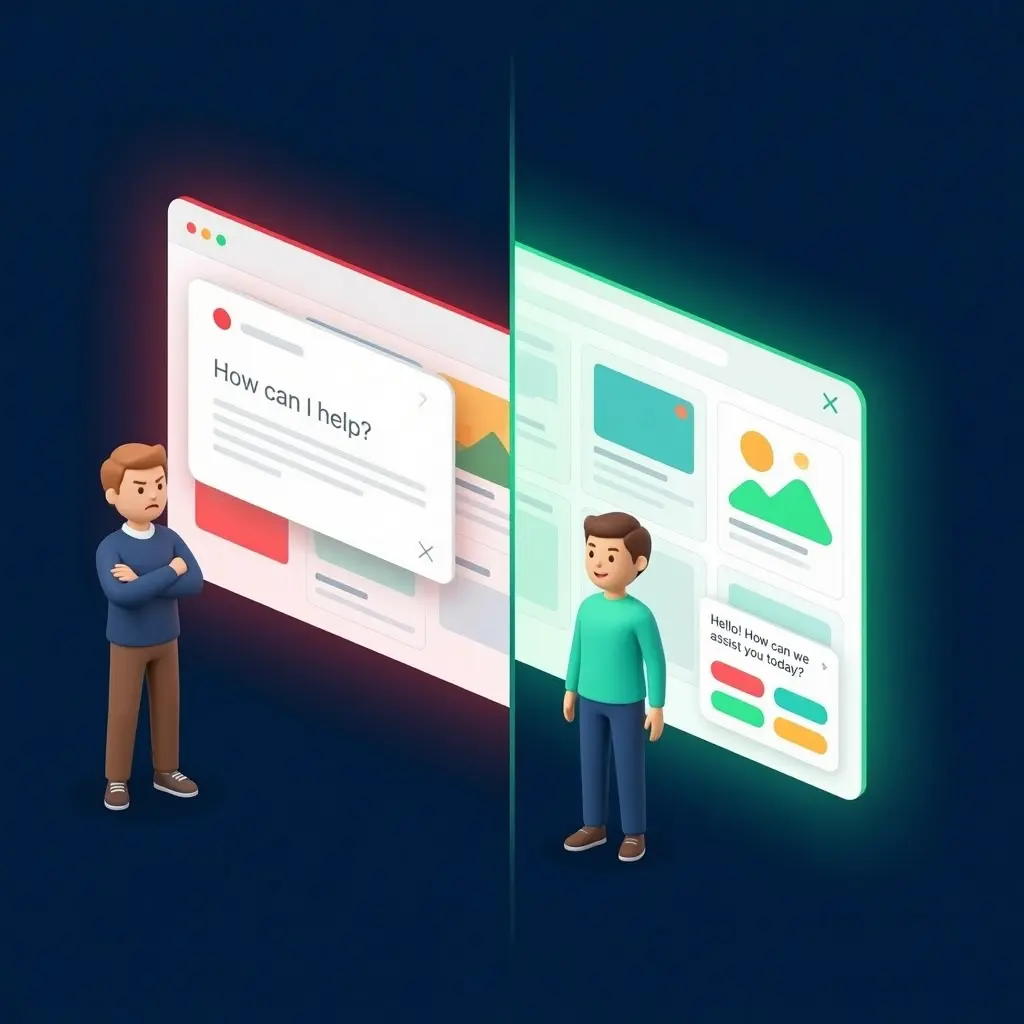
Free chatbot plugins are excellent starting points. But they have real limitations that become painfully obvious as your business grows. Here are the signs it’s time to upgrade to a custom AI chatbot solution.
| Feature | Free Plugin | Custom AI Chatbot |
|---|---|---|
| Cost | $0/month | $3,000 to $12,000 (one-time build) |
| AI Intelligence | Generic responses based on limited training | Trained on YOUR products, services, and FAQs |
| Conversation Limit | 50 to 100 per month on free tier | Unlimited |
| Lead Qualification | Basic (name and email) | Advanced (budget, timeline, service match scoring) |
| CRM Integration | Limited or requires manual export | Automatic (n8n, HubSpot, Google Sheets, Zapier) |
| Languages | Usually English only on free tier | Multilingual |
| Branding | Plugin branding visible on free tier | 100% your brand and personality |
| Maintenance | Plugin updates (may break with WP updates) | Managed by your development team |
| Best For | Testing the concept, low traffic sites | Revenue-generating sites, scaling businesses |
5 Signs You’ve Outgrown Your Free Chatbot
- You’re hitting the conversation limit every month. When 50 conversations/month isn’t enough, you’re either paying for a premium tier (often $19 to $49/month) or switching to a custom solution that has no cap.
- You need the chatbot trained on your product catalog. Free AI chatbots give generic answers. A custom solution trained on your specific inventory, pricing, and policies gives accurate, brand-specific responses.
- You want real-time data integration. Pulling live inventory counts, current pricing, or appointment availability requires custom development and API connections that free plugins don’t support.
- You need automatic CRM logging. Manually exporting chat leads into your CRM is fine at 10 conversations/month. At 200+ conversations, you need automatic syncing through workflow automation.
- You’re serving multilingual customers. Most free chatbot tiers are English-only. If your customers speak Spanish, French, or other languages, a custom multilingual chatbot removes a major barrier to conversion.
One of our ecommerce clients started with Tidio’s free tier and captured 35 leads in their first month. Within three months, they were hitting the conversation limit every week and losing potential leads. We built them a custom AI chatbot trained on their 200-product catalog. It now handles 400+ conversations per month, qualifies leads automatically with budget and timeline scoring, and logs everything directly into their CRM. Their customer support response time dropped from 4 hours to under 30 seconds for 80% of queries.

Frequently Asked Questions
Do I need coding skills to add a chatbot to WordPress?
No. All five plugins in this guide install through the standard WordPress plugin directory with zero coding required. You click Install, click Activate, and configure everything through a visual dashboard. The entire process takes 15 to 20 minutes. The conversation flows use drag-and-drop builders. If you can create a WordPress blog post, you can set up a chatbot.
Will a chatbot slow down my WordPress website?
Well-built chatbot plugins like Tidio and Crisp load their scripts asynchronously, meaning they don’t block your page from rendering. The impact on page speed is typically under 0.3 seconds. However, poorly coded plugins can add noticeable load time. Always test your page speed before and after installing any chatbot plugin using Google PageSpeed Insights to verify the impact.
Can a free chatbot really handle customer support?
For basic queries, yes. AI chatbots can handle approximately 80% of routine questions (business hours, pricing, shipping, return policies) without human intervention. The key limitation on free tiers is conversation volume (typically 50 to 100 per month) and AI training depth. For high-volume sites or complex product questions, you’ll need either a paid tier or a custom solution.
What is the best free chatbot plugin for WordPress in 2026?
Tidio is our top recommendation for most WordPress business owners. It offers genuine AI capability through Lyro AI on the free tier, a visual flow builder, live chat fallback, mobile optimization, and lead capture. The free tier covers 50 AI conversations per month. For HubSpot users, HubSpot Chat is best. For team-based support with shared inbox, Crisp is the strongest option.
How many conversations can a free chatbot handle per month?
It varies by plugin. Tidio offers 50 AI conversations per month on the free tier. Collect.chat allows 50 responses. HubSpot Chat has no conversation limit but requires a HubSpot CRM account. Crisp offers unlimited chats for 2 team seats. WPBot offers unlimited basic conversations but AI features require DialogFlow setup. For most small business sites under 5,000 monthly visitors, 50 conversations is sufficient.
When should I upgrade from a free chatbot to a custom AI solution?
Upgrade when you consistently hit the free conversation limit, when you need the chatbot trained on your specific product catalog or service details, when you need automatic CRM integration, or when you serve multilingual customers. For most businesses, this tipping point comes between 100 and 300 chat conversations per month, typically when your site reaches 10,000+ monthly visitors.
🚀 Need Professional Help?
Free plugins are great for getting started. But when you need a chatbot that understands your products, answers complex questions, and qualifies leads automatically, you need a custom solution. Our AI Chatbot Development packages start at $3,000 and include training on your specific business data.